
4 min read · Updated July 2026 · Reflects RollCall Parent App version 4.0.0
Manage your account and security
Get around the Account tab, change your password, keep alerts current, and sign out.
- Who this is for
- Parents and carers who want to keep their own account details and security up to date.
- Where
- The RollCall Parent App, on the Account tab.
- You will need
- You are signed in, and you can reach the mobile number or email on your account if you plan to change your password.
On this page
Short on time?
Sections 2 and 3 are the ones to know, finding your way around the Account tab and changing your password safely. The others are quick when you need them.
What this guide covers
The Account tab is your home base in the app. Your details sit at the top, your settings and children in the middle, and a sign-out button at the bottom, all on one screen. It is where you go when something needs attention rather than every day.
This guide shows you how to find your way around the Account tab, change your password safely, keep your alert preferences current, and sign out when you hand your phone to someone else.
Find your way around the Account tab
Everything to do with your own account lives on the Account tab, laid out top to bottom so you can find it at a glance.
Open the Account tab. Tap Account in the bar along the bottom. Your profile sits at the top: your name, your role, and the mobile number and email the school has on file.
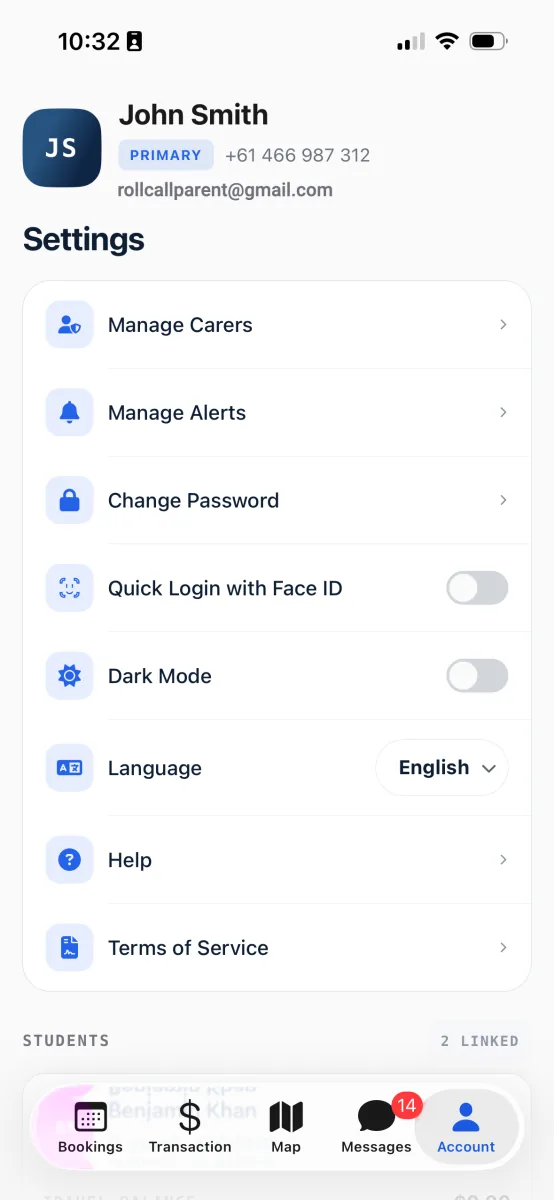
Profile up top, settings in the middle, your children and Logout below. Look through your settings. Below your profile, the Settings card holds Manage Carers, Manage Alerts, and Change Password, along with switches for Dark Mode and quick sign-in, a Language picker, and Help.
Check your children and find Logout. Scroll down to see the children linked to your account, then the red Logout row near the bottom.
You know where everything lives, so the next task is only a tap away.
Dark Mode Switch the whole app to a darker look, easier on the eyes for an evening check of the bus.
Quick Login with Face ID Sign back in with a glance instead of typing your password each time.
Language Choose the language the app uses from the Language row.
Worth knowing
Your profile details are read-only here, because the school's records are the source of truth. If your name, mobile number, or email is wrong, contact your school office and ask them to update it.
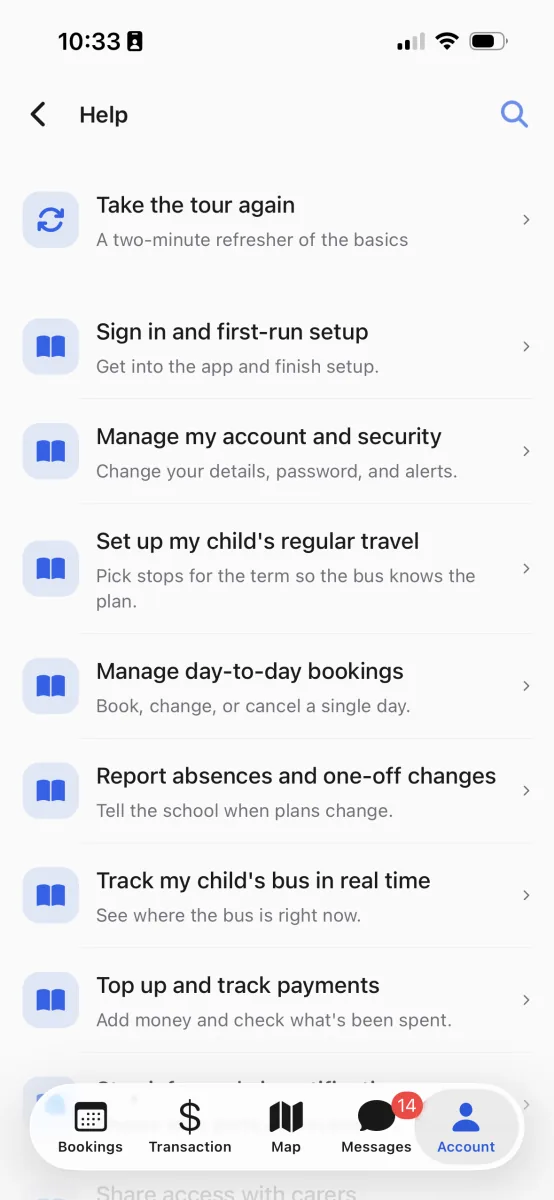
Change your password
Changing your password is quick, and you do not need your old one. Instead, the app checks it is really you with a one-time code before you set a new password.
Open Change Password. On the Account tab, tap Change Password in the Settings card. Choose whether to get your code by SMS or email, then tap Send Code. SMS shows only if a mobile number is on your account.
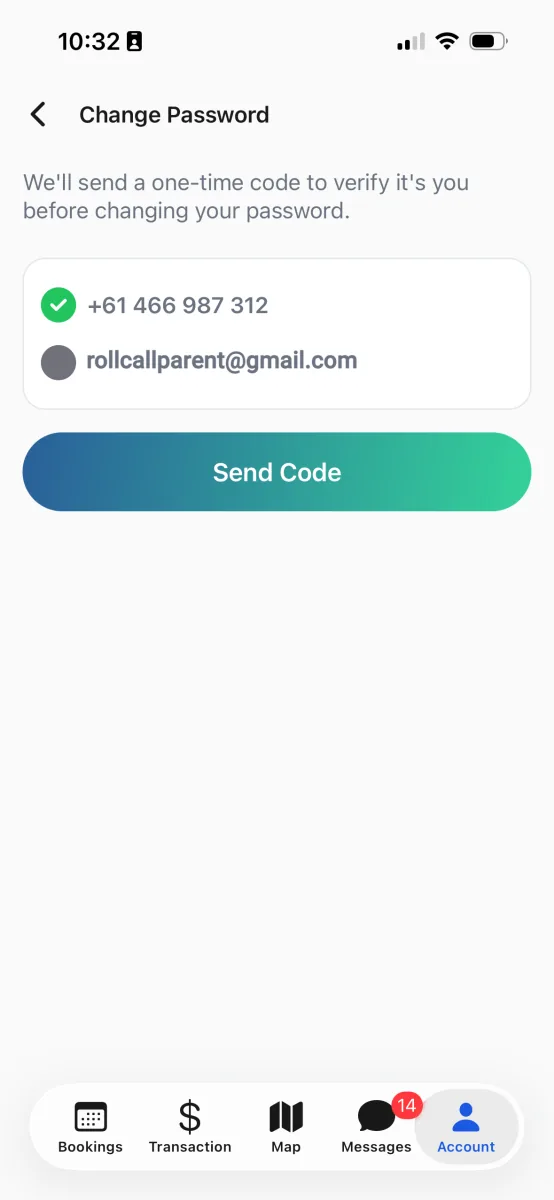
Pick where the code goes, then tap Send Code. Enter the code. Type the six-digit code the app sends you. If it has not arrived, wait for the countdown and tap Resend code, or go back and choose the other method.
Set your new password. Type a new password that meets the checklist on screen, confirm it, and tap Change Password.
For your security, the app signs you out on every device. Sign back in with your new password.
Worth knowing
Being signed out everywhere is deliberate: it locks out anyone who had your old password. If another adult shares the account on their own phone, they will need to sign in again too.
Keep your alert preferences current
Your alert preferences live under the Account tab too, so this is where you come back to turn things up or down as your family's needs change.
Open Manage Alerts. On the Account tab, open the Settings card and tap Manage Alerts.
Choose your alerts. Pick a child from the dropdown, tap Email or Push Notifications, then switch alerts on or off. Your choices save the moment you tap, so there is no save button.
The app sends only the alerts you want, and you can come back and adjust them any time.
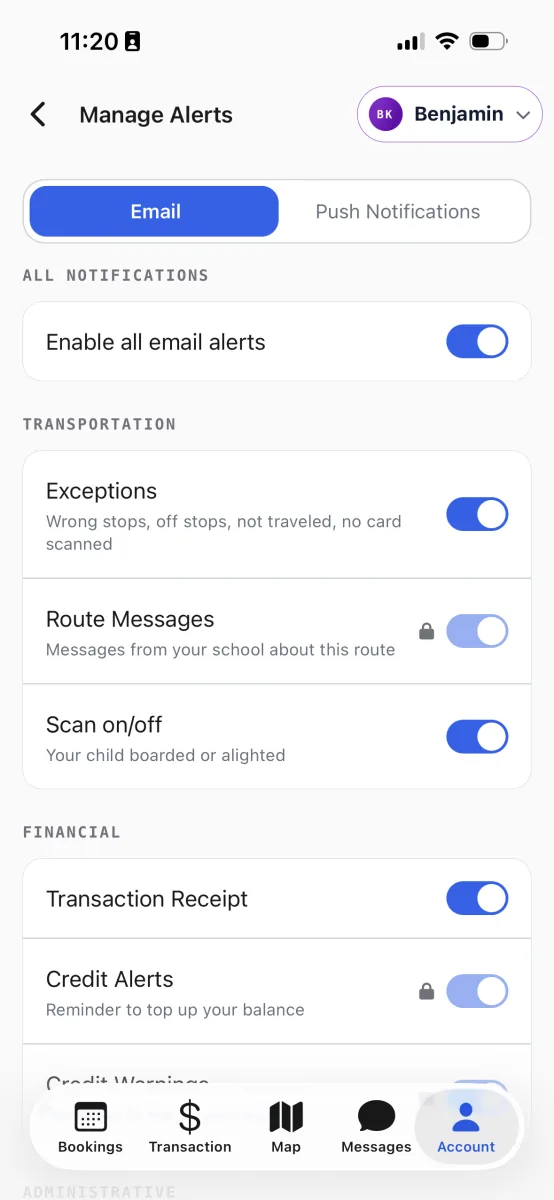
Email alerts have their own switches, separate from push.
Tip
For the full picture of what each alert covers and how to fine-tune them, see the notifications and alerts guide.
Sign out
When you hand your phone to someone else or move to a new device, signing out keeps your account yours.
Tap Logout. On the Account tab, scroll to the red Logout row near the bottom and tap it. Confirm on the pop-up that asks whether you are sure.
Sign back in when you need to. Signing out does not delete anything. Your account and your child's records are still there, ready the next time you sign in.
The next person to open the app sees the sign-in screen, not your child's details.
Worth knowing
Signing out stops push notifications reaching this device until you sign in again. On a new phone, sign in with your email and password and everything is there, though you may need to allow notifications and turn quick sign-in back on.