
4 min read · Updated July 2026 · Reflects RollCall Parent App version 4.0.0
Report an absence or one-off change
Let the school know your child won't be on the bus, for a single day or a stretch of days.
- Who this is for
- Parents and carers letting the school know about a day their child will not be on the bus.
- Where
- The RollCall Parent App, on the Bookings tab.
- You will need
- You are signed in and your child has a booking on the dates you are reporting.
Watch the walkthrough
Reporting a bus absence
The absence form, opened from the Bookings tab: checking the right child is selected, choosing a reason, setting the first and last day, confirming which journeys it affects, and adding a short note. It ends on the history icon, where your past absences are listed.
2 min 19 sec · Watch on Loom
On this page
Short on time?
If you are in a hurry, section 2 is all you need, it walks through reporting an absence from start to finish. The rest is handy background.
What this guide covers
When your child is not catching the bus, a quick heads-up keeps everyone on the same page. Report it in the app and the driver's list updates, so no one waits at the stop for a child who is not coming.
This guide shows you how to report an absence for a single day or a stretch of days, how to file one fast from the timeline, and how to check what you have already reported. Your regular term booking stays in place for every other day.
Report an absence
Reporting an absence takes about a minute. You choose a reason, set the dates, confirm which bus journeys it affects, and submit.
Open Create Bus Absence. From the Bookings tab, check the right child is selected, then tap Make a change and tap the Create Bus Absence card, the first one. The form is on screen straight away.
Choose a reason and the dates. Tap the reason that fits, such as Sick or Bus Absence. Tap the From pill to set the first day, then the To pill for the last day. For a single day, set both to the same date.
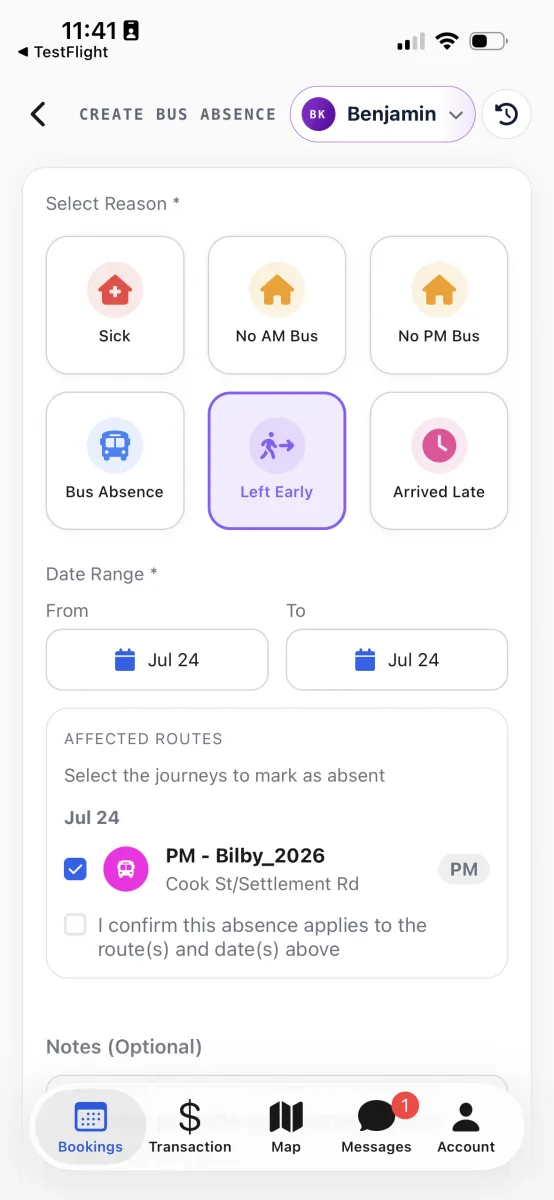
Reason, dates, affected journeys, confirm: the whole form on one screen. Confirm the affected journeys. The Affected routes card lists every bus journey your child is booked on across those dates, all ticked to start. Untick any the absence does not apply to, keep at least one, then tick I confirm this absence applies to the route(s) and date(s) above.
Add a note, then submit. Add a short note if the school office should know anything, for example that a grandparent is collecting them. Tap Submit Absence, then tap OK on the Success message.
The absence is on file for the journeys you confirmed, and you land back on the Bookings tab.
Tip
Report the absence as early as you can. The bus leaves on time whether or not the absence is filed, so an early heads-up means the driver has the right information from the moment the trip begins.
Absence or short-term change?
It helps to know which tool fits. Report an absence when your child will not be on the bus at all, for a sick day, a family trip, or an afternoon a grandparent collects them. The seat is held, the school has a clear record, and your child is expected back on the bus automatically once the dates end.
Use a short-term change instead when your child is still travelling, just from a different stop or on a day they do not usually catch the bus. That moves the seat rather than marking it unused. If you are ever unsure, reporting an absence keeps the clearest record.
File a day absent from the timeline
If you are already looking at the ten-day timeline, there is a faster way to report a single-day absence.
Open the timeline and tap the day. From Make a change, tap Short-term Bus Change, then tap the booked slot for the day your child will be away.
Tap Mark as Absent. The Create Bus Absence form opens with the child, the single day, and the Bus Absence reason already filled in. Confirm the affected journeys, tick the confirmation, and tap Submit Absence.
Worth knowing
If the option reads Marked as Absent and is greyed out, an absence already covers that day, so there is nothing more to do.
Check what you've reported
Every absence you file is kept in one place, so you can see what is on record before you file another.
Open Absence History. On the Create Bus Absence screen, tap the history icon in the top corner. Your absences appear grouped by month, newest first, covering every child on your account.
Tap a row for the detail. Tap any absence to see the full dates, the reason, any note, and when it was filed. Pull down to refresh if something you just filed has not appeared yet.
Tip
Check the history before filing a new absence. It is easy to file a duplicate when both parents are using the app.
How the school and driver see it
Once you submit, the school office sees the absence in their dashboard with your reason and any note, and the driver's list updates for each affected trip. Your child is not expected to scan on, and no one waits at the stop for them.
When the dates end, your child is expected back on the bus automatically, with nothing further for you to do. If your plans change and your child travels after all, just have them catch the bus as normal, and the driver reconciles what they see at the stop.