Choose how long-term bus bookings work at your school, term by term, and RollCall follows it.
Every school runs bus bookings a little differently. Some let parents book and get on with it. Some want to check each request first. Some do all the booking themselves, because seats are tight or routes are planned around every student.
Until now, RollCall gave you one switch: parent bookings on or off. That suited the schools at either end, and left everyone in between working around it.
Not any more. Booking setup asks you one question, and the answer shapes how bookings work for your team and your families.
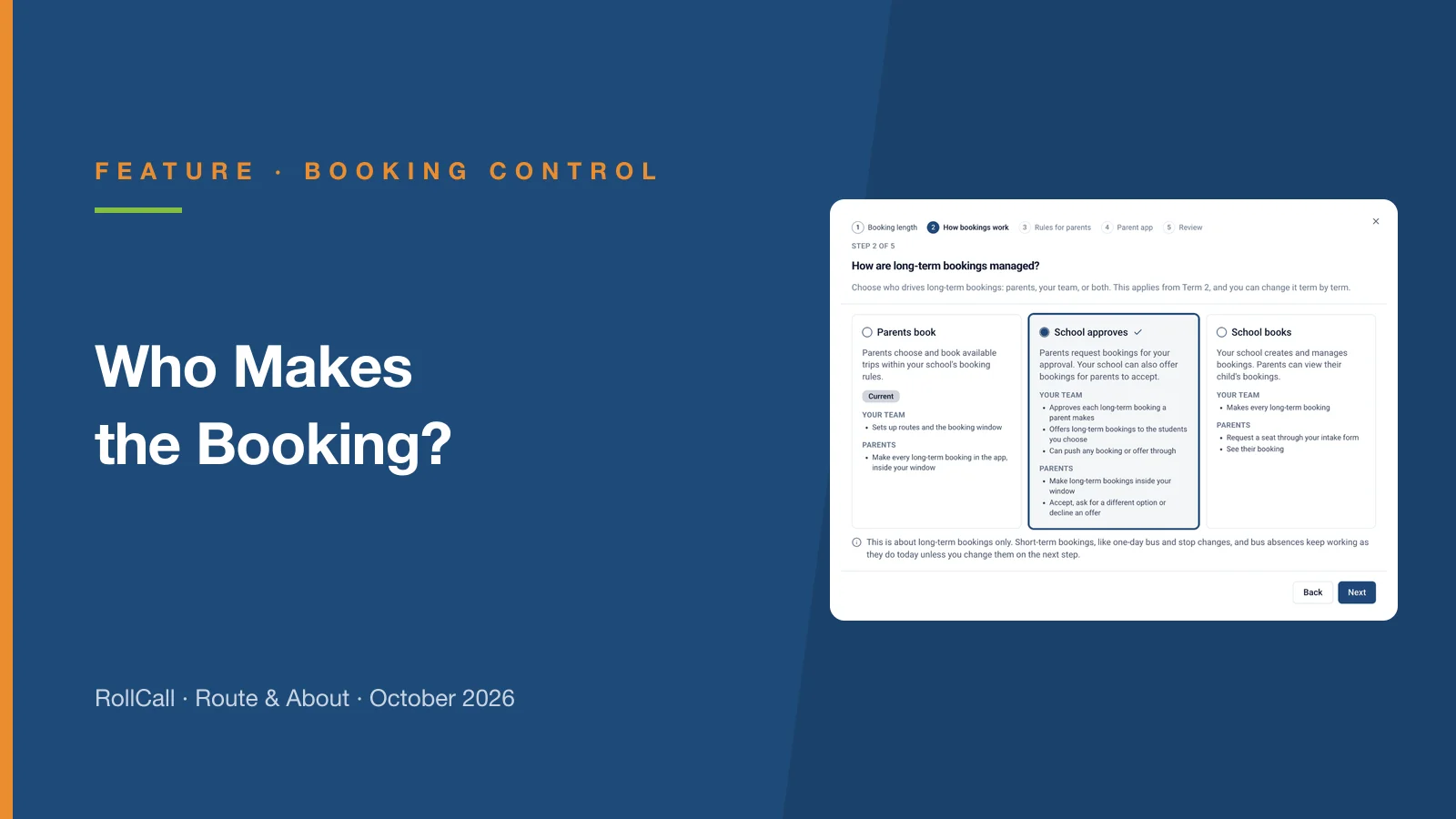
Who makes the booking? That is the whole choice - and you can make a different one for each term.
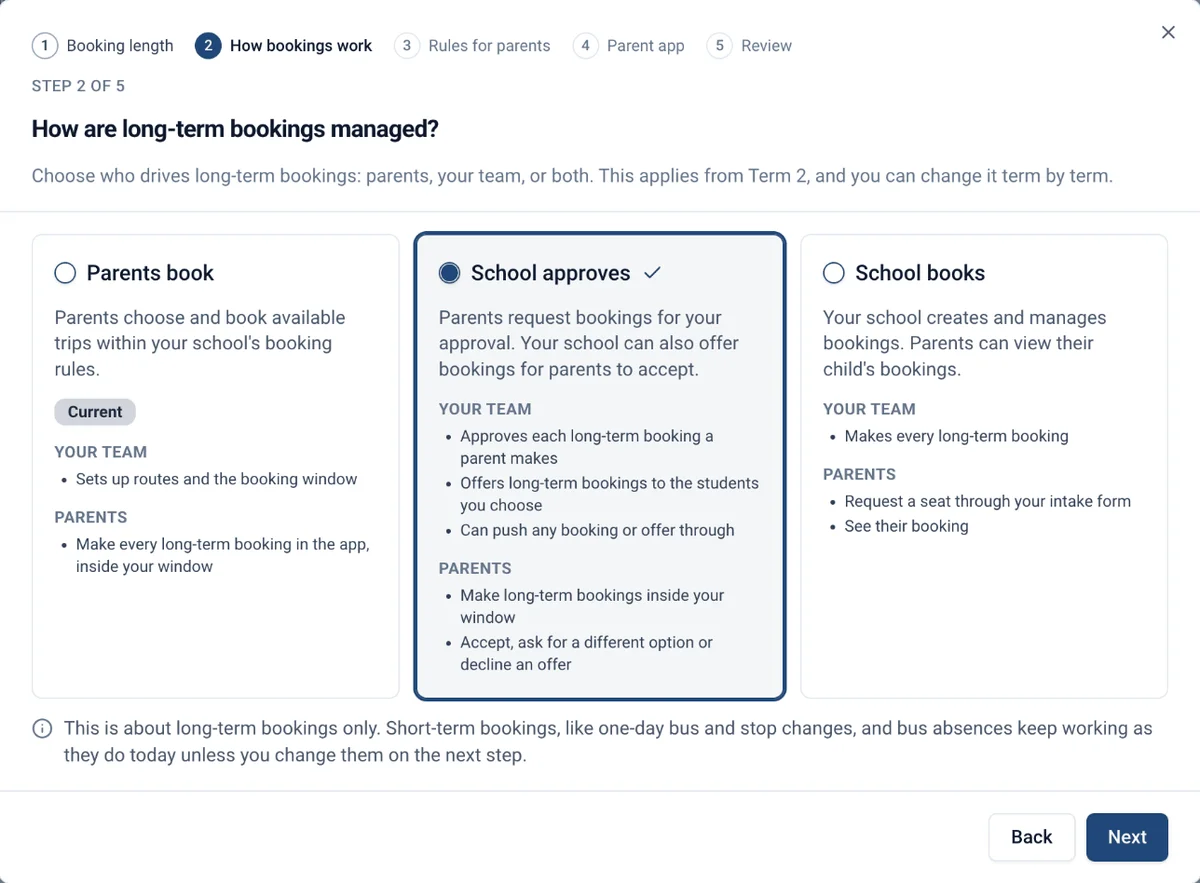
Three ways to book
The choice covers long-term bookings: the regular seat a student holds for the term. One-day bus and stop changes, and bus absences, keep their own settings whichever way you choose.
Booking setup asks one question, and you can change the answer term by term.
1. Parents book
The parent books, and the booking is confirmed straight away, inside your booking window. Mia's mum books Term 1 in the app, and Mia is on the bus.
2. School approves
One side asks, and the other says yes. Leo's dad books Term 1, and it waits until your team approves it. Or your team offers Leo a seat, and his dad accepts.
3. School books
Your team books, and parents can see the booking but not change it. Your team puts Ava on Route 4, and her parents see it in the app.
Which one suits your school?
There is no right answer, only the one that matches how your service already runs.
Parents book suits schools with room on their buses and families who already book for themselves.
School approves suits schools that want families involved but need to check each booking first - perhaps because seats are limited, some routes fill early, or some families need a seat arranged for them.
School books suits schools that allocate every seat themselves, often where routes are planned around each student or demand outstrips capacity.
You can change the way for a term at any time, even partway through. Bookings already made keep the way they were made under.
What parents and your team can do
Here is how the three compare, side by side.
Parents book
School approves
School books
A parent books a term
Booked straight away, inside your booking window
Becomes a request. The seat is held, and your team approves it
Not available. Parents are told the school manages bookings
Your team books a term
Booked straight away
Sent to the parent as an offer, or booked directly
Booked straight away
A parent cancels in the app
Only if you allow it
Only if you allow it
Never
One-day changes and absences
Their own settings
Their own settings
Their own settings. One-day changes start switched off
Whichever way you choose, RollCall now checks your booking window, your confirmed routes and bus capacity for every parent booking. Parents can book a term only once you have confirmed that term's routes on the Routes tab.
Setting it up
Nothing changes until you finish setup. Go to Settings › Bookings, open the Setup tab and select Get started. Until you confirm, the header reads "Not set up" and bookings keep working exactly as they do today.
Setup takes five short steps:
Booking length. Do long-term bookings run term by term, or for the whole year?
How bookings work. Parents book, School approves or School books.
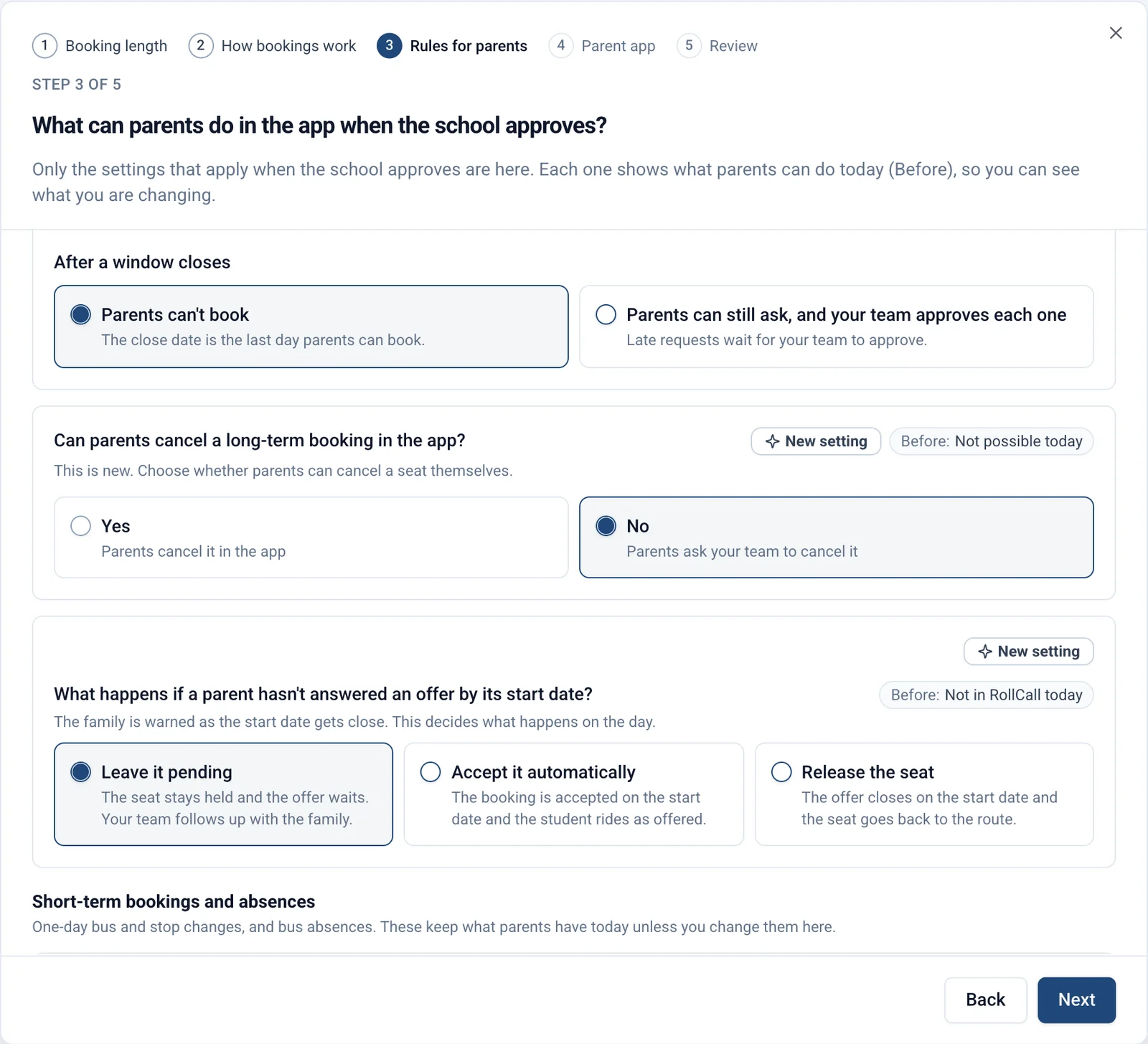
Rules for parents. When parents can book, whether they can cancel in the app, one-day changes, absences, and what happens to an offer nobody answers.
Parent app. Four switches: the Bookings tab, long-term bookings, one-day bus and stop changes, and bus absences.
Review. A before and after of what parents will see. Confirm, and it is on.
Rules for parents only asks what applies to the way you chose, and shows what parents can do today beside each question.
Confirming setup changes your settings, never your bookings. Students who are already booked stay booked.
School approves: how an offer works
An offer holds a seat for the student but books nothing until the parent accepts it. If the student already has a booking, it stays in place until the new one is accepted.
1. Your team saves a seat
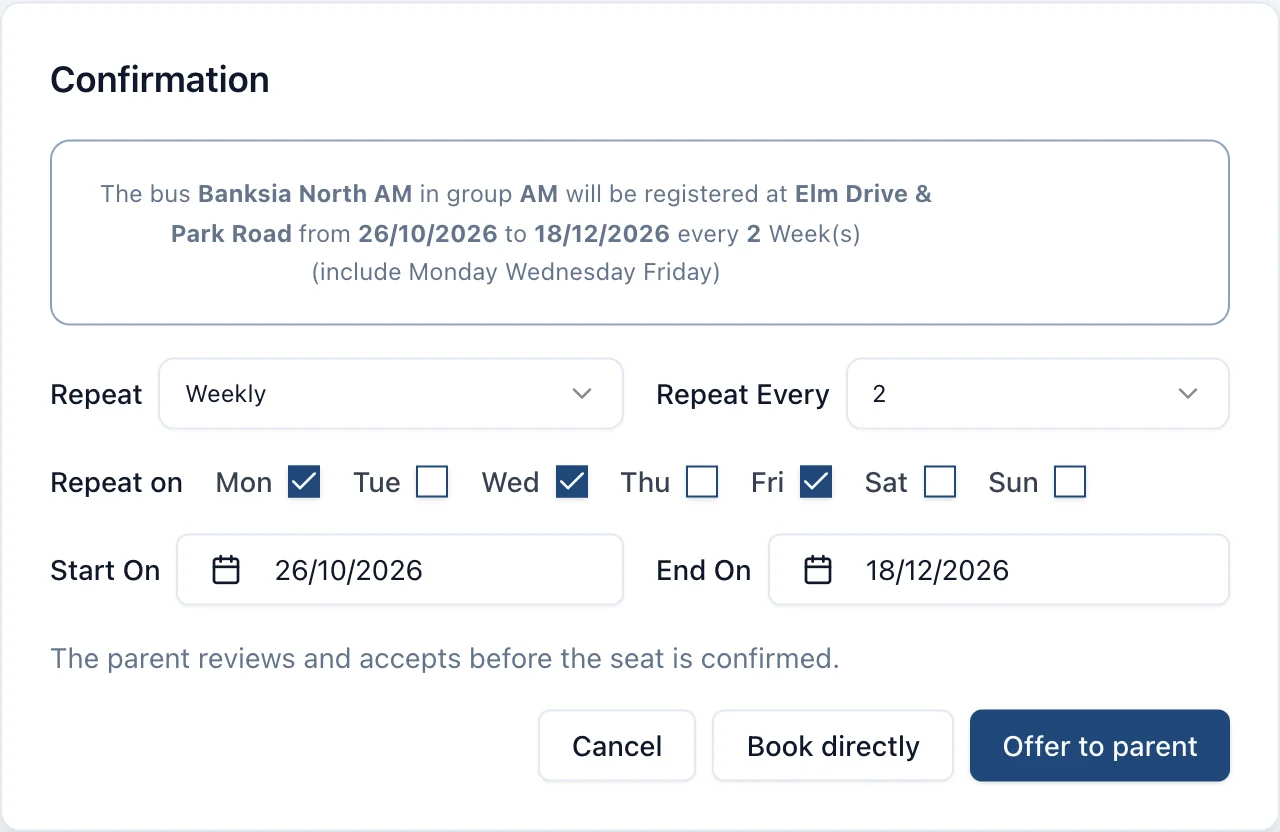
On Seat, or Students › Bus Booking, the confirmation now has two buttons: Offer to parent, and Book directly beside it. An offer can cover chosen weekdays, every week, or every second week for a student who stays with each parent on alternate weeks - set Repeat Every to 2.
An offer for every second week, on Mondays, Wednesdays and Fridays. Offer to parent sends it for the parent to accept; Book directly books it straight away. Sample data.
Capacity counts every held seat, so a bus cannot be promised twice.
2. The parent answers in the app
The offer waits in Pending Review until the parent answers. They can Accept seat, and the student is booked. They can Decline, with an optional reason, and the seat is released. Or they can Ask for a change - a different stop or route, or a new stop near an address - once.
3. If the parent does not answer
7 days before it starts. A reminder to the parent to answer by 3pm the day before.
2 days before. A second reminder.
3pm the day before. Your school's choice applies: leave it pending, accept it automatically, or release the seat. Leave it pending is the default. Schools in Adelaide and Darwin get this step at 3:30pm.
The start day. A parent can still answer an offer that was left pending.
At 3pm the day before, your administrators get one summary, as a bell item and an email: how many offers starting tomorrow were accepted, released, still waiting, or waiting on your team.
Your team can accept on a parent's behalf at any time, one offer or many at once.
School approves: when the parent asks first
Under School approves, a term booking a parent makes becomes a request. The seat is held, and the request lands in Needs Attention for your team.
From there, your team can approve it, approve it with a different stop or bus, or reject it. The parent hears at each step: an email when the request is sent to the school, and another when it is approved, approved with changes, or not approved.
One thing to know: until your team approves a request, the student is not on the driver's list for that trip.
The Bookings board
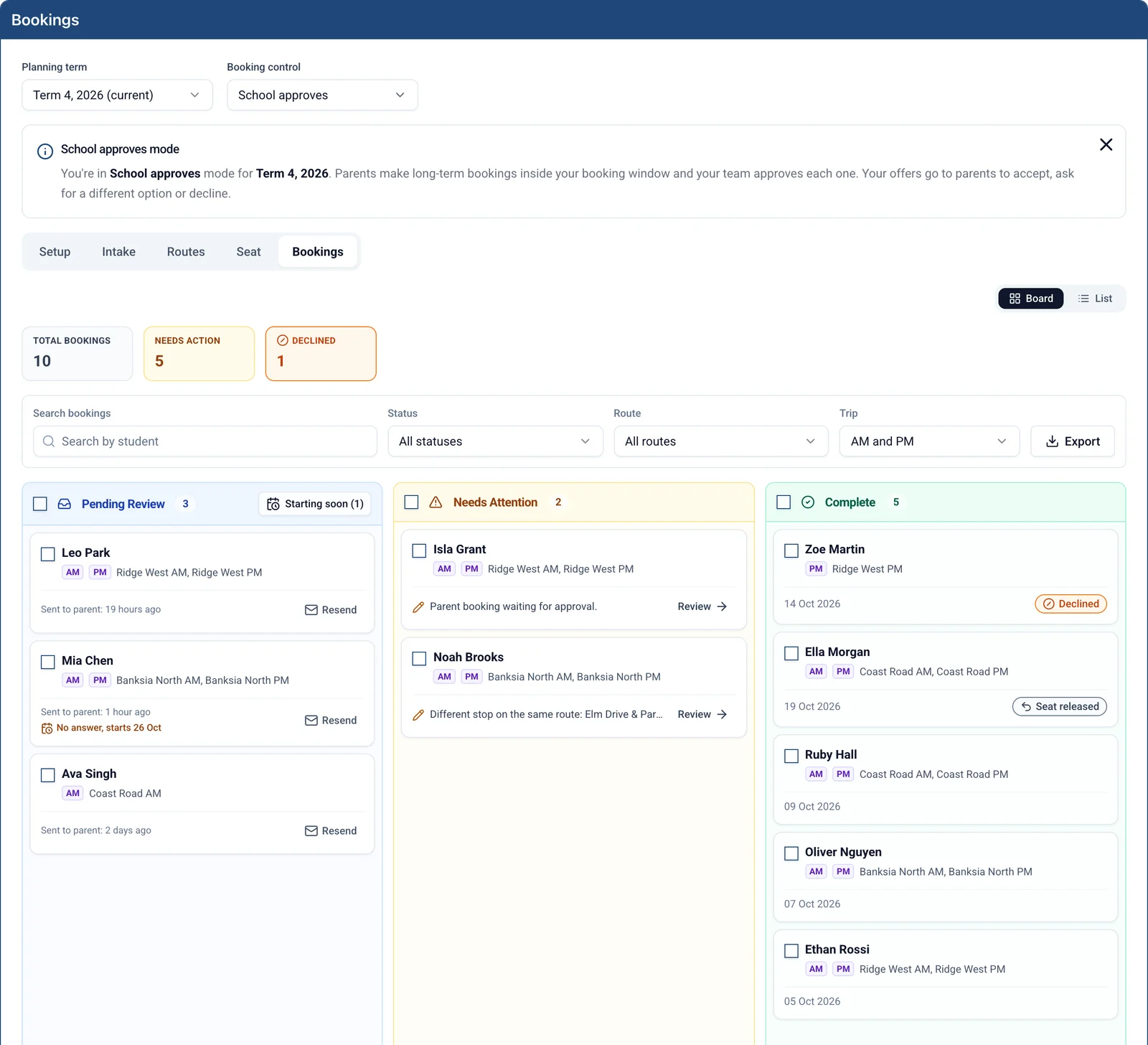
Every long-term booking for the term sits on one board, in three columns, according to whose move it is.
Pending Review. Offers sent to parents and waiting for their answer.
Needs Attention. Waiting on your team: a parent asked for a different option, or made a booking that needs approval.
Complete. Accepted, declined, rejected and released bookings. The record.
The Bookings board: offers waiting on parents, requests waiting on your team, and the finished record. Sample data.
Bookings made another way, such as through rollover, Route Builder or Smart Route, show in Complete. Under School books, only Complete shows.
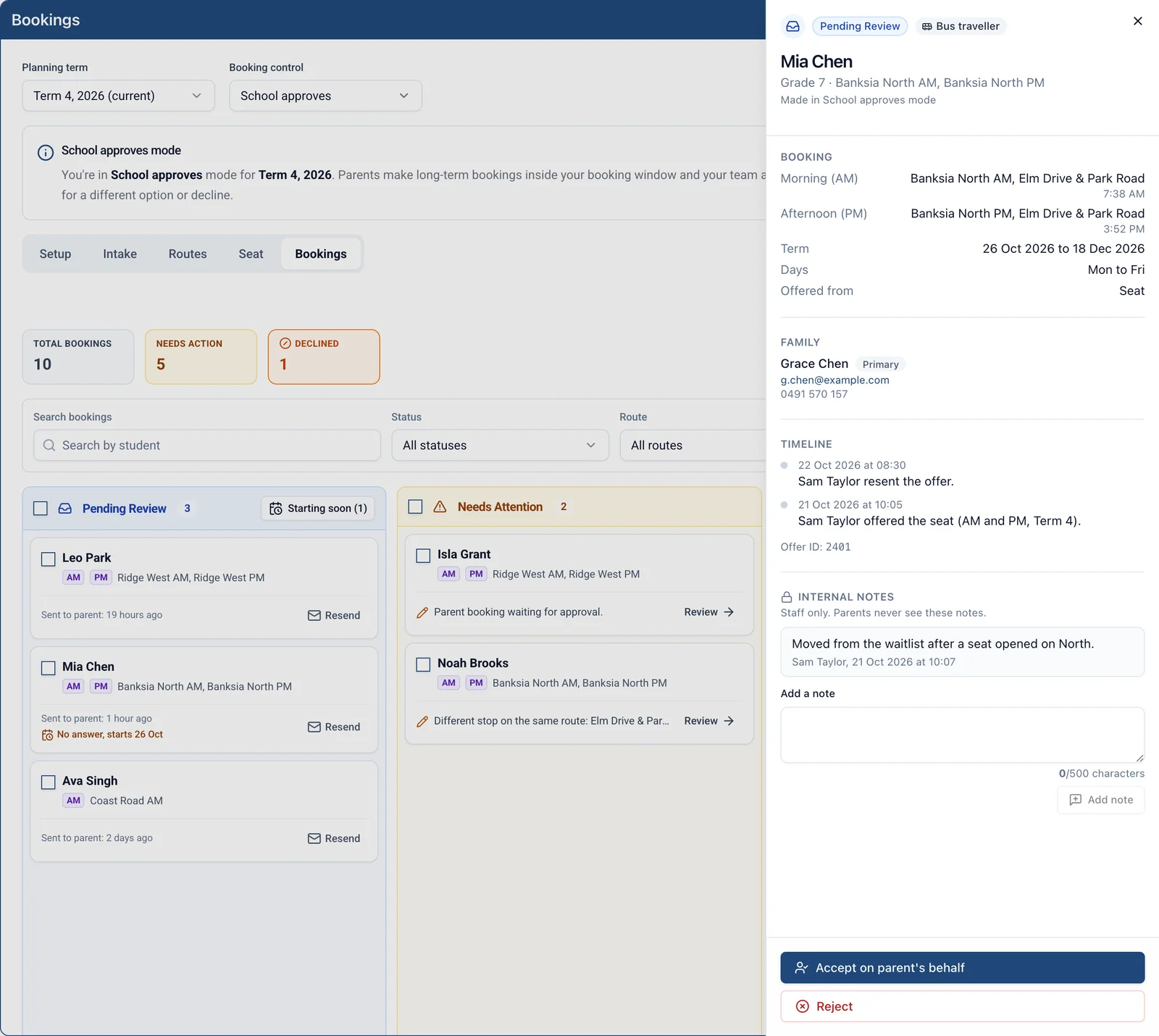
Open any card for the full set of actions: accept on the parent's behalf, approve a booking or a change request, re-seat, reject, cancel, edit, resend the confirmation, and add notes only your staff can see. Editing a booking changes the bus or stop from tomorrow. Trips that have already run, been scanned or been charged are kept as they were.
Open a card to see the booking, the family and the history in one place - and accept on the parent's behalf. Sample data.
Around the board, Starting soon narrows the list to offers starting within 7 days, and the List view shows every booking's status, with a CSV export.
What parents see
The school side is ready now. The parent side of offers and requests comes with the new Parent App, version 4.1.0, which is on its way to the app stores.
In the new app, parents see "1 bus booking to review" with Accept seat, Ask for a change and Decline, and "Waiting for your school" on a request they have made. Where your school allows it, they can also cancel a long-term booking.
Until your families have the new app:
Accept on their behalf, or book directly. Under School approves, your team can accept offers for parents, or use Book directly instead.
Parents are not emailed when you send an offer. They hear about it through the reminders, 7 and 2 days before it starts.
Offers do not show on parent web. On parent web, a request also looks like a normal booking, so a parent may think their child is booked when the request is still waiting on your team. The "sent to the school for approval" email is the one to look for.
Changes every school will notice
Two changes in this release reach every school, whether or not you run Booking setup.
Booking messages are more consistent
Every booking message now follows the same path. If your school did not send booking emails before, you may start to. Parents who chose push notifications get pushes, secondary parents get everything a primary parent gets, one-day bus changes your team makes notify parents, and each parent gets one confirmation per booking.
Some report numbers may go down
Duplicate bookings have been cleaned up. Bus Utilisation, Transport, Transit Times, Exception, Student Route/Stop and Overdue trips reports, and the driver's list, now count each student once per trip. If a number drops, that is why. Trip Details, Trip Summary, Non Travelled, Revenue and Customer Statement still count the removed duplicates for now, so their totals may not match the others.
Questions you might have
"Parents cannot book next term."
Check that you have confirmed that term's routes on the Routes tab, that the booking window is open, and that the term is not set to School books.
"A parent says they booked, but their child is not on the driver's list."
Under School approves, a parent's booking is a request until your team approves it. Look for it in Needs Attention.
"A student rode the bus, but the offer was never accepted."
They can still ride. Riding never accepts an offer, and the board flags the student as "Rode the bus while pending", so you can follow up.
"A parent wants Monday, Wednesday and Friday only."
Your team can offer chosen weekdays, or every second week, on Seat. Parents cannot pick days in the app yet.
"We would like to undo setup."
Contact our support team. Setup can be reset only before any offer has been sent.
What is coming next
This is the first stage. Next on the list:
Parents withdraw or change a pending request in the app.
A bell alert when approvals are waiting. For now, check the board.
Rollover and Smart Route making offers under School approves. Today they book straight away.
Parents picking days, or every second week, in the app.
Messages when bookings open, are about to close, and have closed.
Three things to take away
Choose the way you already work
Pick the way of booking that matches how your team runs bookings today, not how it might one day. You can change it for any term later.
Set it up before families book
Run Booking setup under Settings › Bookings, and confirm that term's routes, before families start booking. Nothing changes until you finish, and the review shows you every change before you save.
Need a hand?
If you would like to talk through which way of booking suits your school - your routes, your capacity, your families - our support team is happy to go through it with you. Email support@rollcall.com.au.