
News1 November 2026
The Sunshine State? Not This Week
Five days visiting our schools on the Sunshine Coast, and not much sunshine. Here's who we saw, what schools loved most, and where we're headed next.
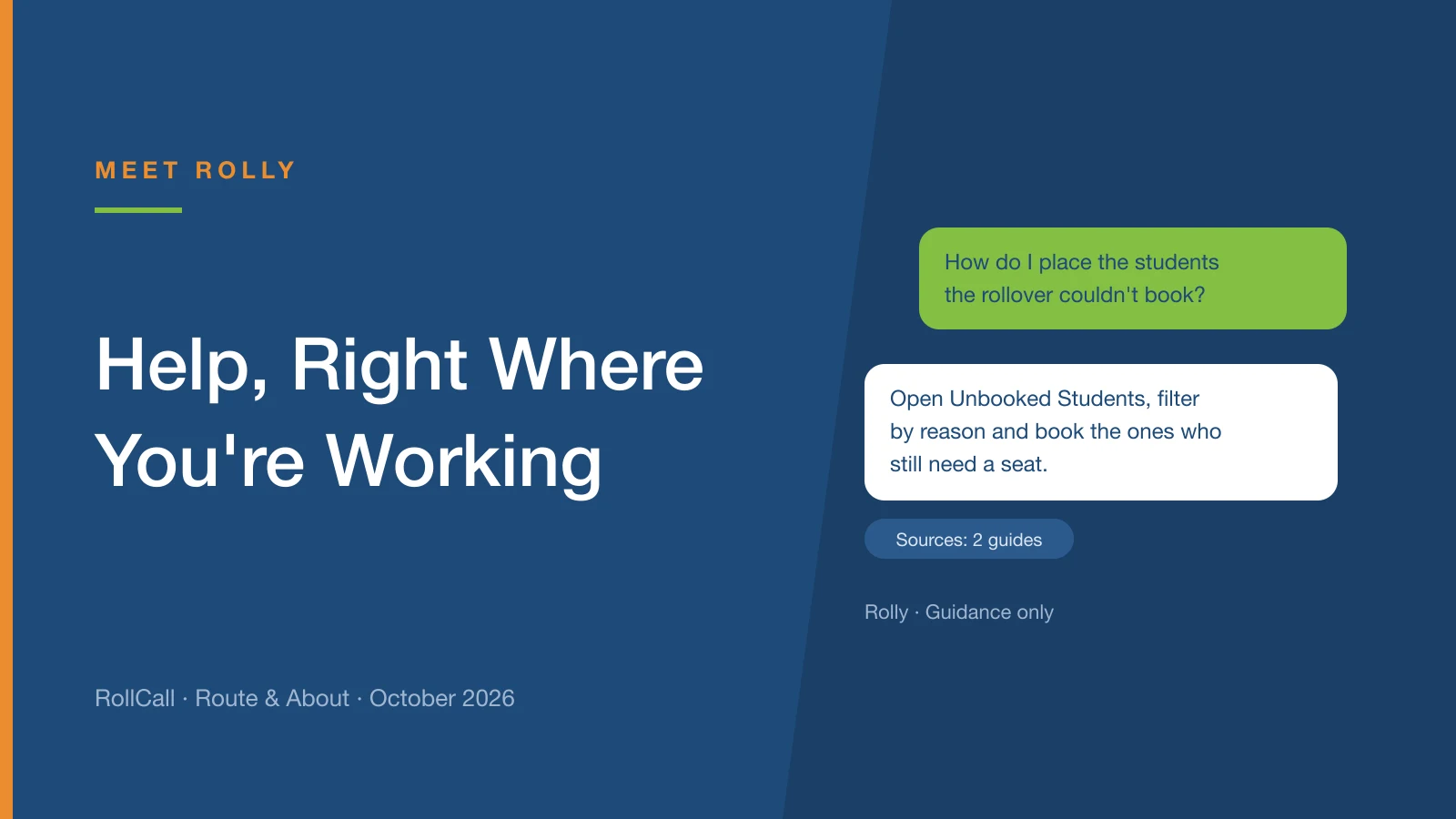
Help now opens beside the screen you're on, and on some screens you can simply ask.
You know the feeling. You're halfway through a job you only do once a year, you can't remember the next step, and the help article is somewhere in another tab, if you can find it at all.
So we moved help to where the work is.
Help used to float in the bottom-left corner. Now it sits in the menu at the top right. Select it, or press ? on any screen, and a panel opens down the right-hand side of the screen you're on.
No new tab and no new page. The steps are on the right while you work on the left. Pin the panel and it stays open as you move from screen to screen.
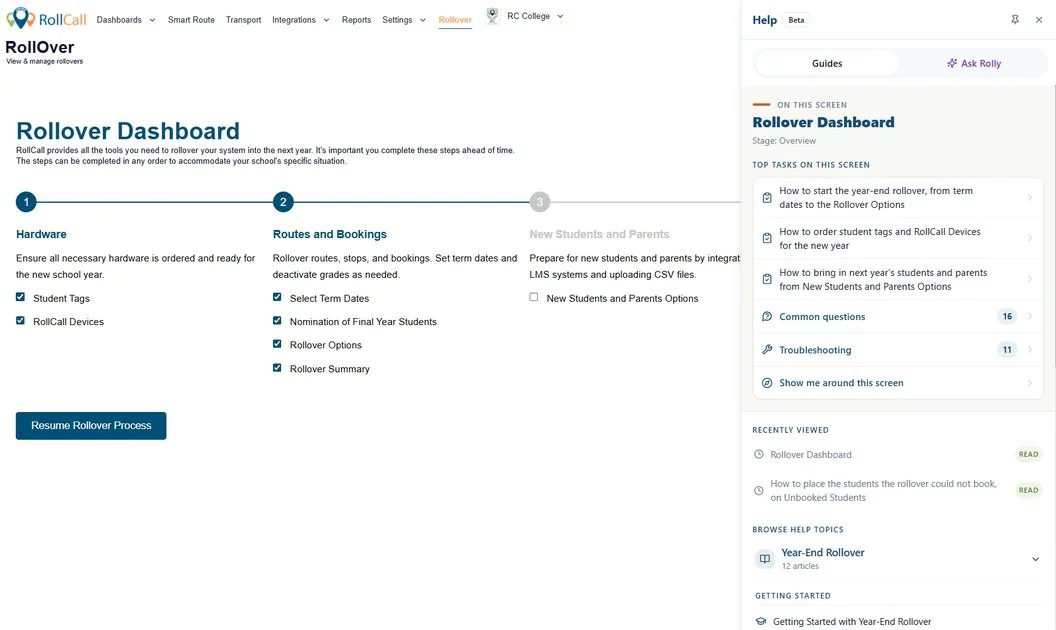
The panel opens on the screen you're looking at: the top tasks for it, common questions, troubleshooting, and a short tour. On the Rollover dashboard it also shows the stage you're up to, so the guides that come first are the ones you need next.
On some screens, the panel has a second tab: Ask Rolly, our AI-assisted helper.
Ask a question in your own words, like "How do I place the students the rollover couldn't book?" Rolly answers from RollCall's own guides and shows you which ones it used, so you can open them and check for yourself.
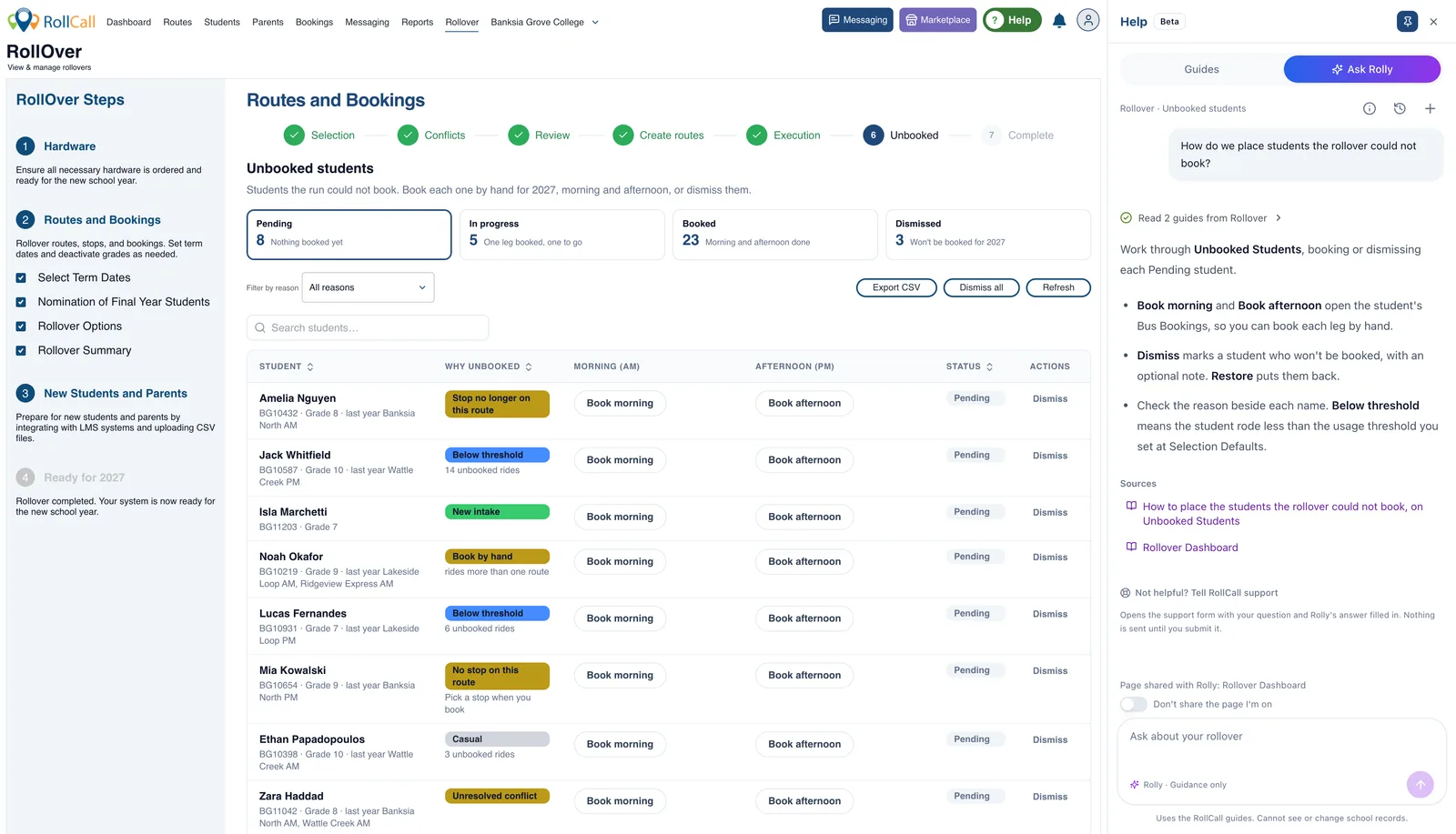
You don't need to know what the guide is called. You only need to know what you're trying to do.
Rolly first appeared on Reports in May, helping you find the right report. It's now one assistant across the screens that have it.
Rolly uses the RollCall guides. It can't see or change your school's records. Check its answer against your own setup before you change anything.
So its answers fit, Rolly is told the name of the page and tab you're on, the last few pages you visited in the past 30 minutes, and any actions that didn't work in that time.
It never sees your screen or a picture of it, and never sees names, records, what you type into RollCall or error details. If you'd rather it didn't know where you are, switch on Don't share the page I'm on for that chat.
If an answer doesn't help, select Not helpful? Tell RollCall support. It opens a support request with your question and Rolly's answer already filled in, so you don't have to explain it twice. You check it and send it yourself.
Ask Rolly is on the Rollover dashboard and on Reports, once you've opened a report. It's coming to more screens as each one is ready, starting with the jobs that generate the most questions. If you don't see it on a screen yet, it's on its way.
Rolly is in beta, so your feedback really counts. It tells us which screens and questions to tackle next.
Tried it? Email support@rollcall.com.au and tell us what worked and what didn't.
Five days visiting our schools on the Sunshine Coast, and not much sunshine. Here's who we saw, what schools loved most, and where we're headed next.
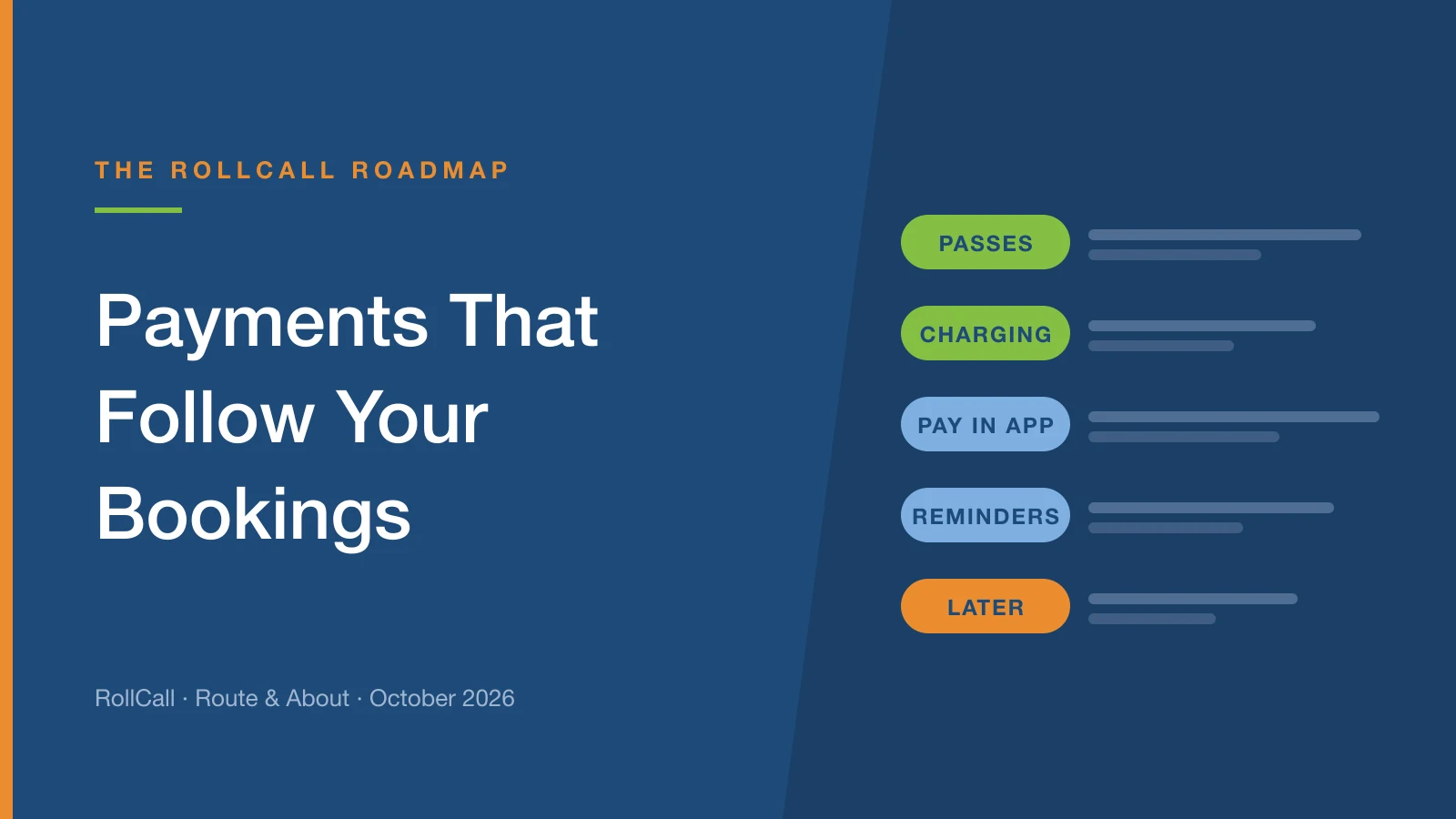
The next part of the Bookings rebuild brings the money side into the same place: term and year passes, charging in one go, and paying in the Parent App.
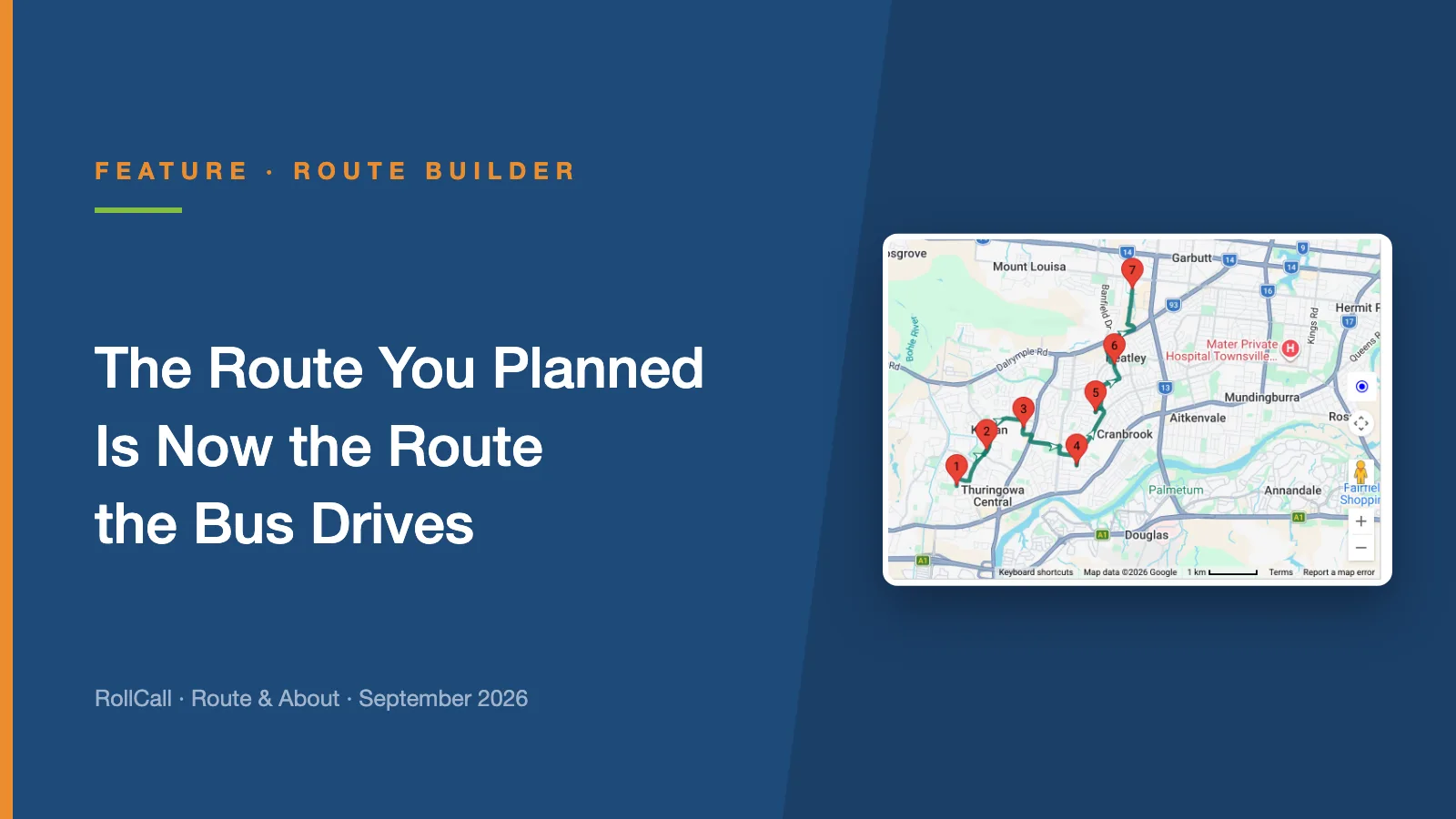
Until now, driver navigation found its own way between your stops. Plan Navigation lets you set the exact road, and the driver app follows it turn by turn.