
News1 October 2026
Your Welcome Email, Your Way
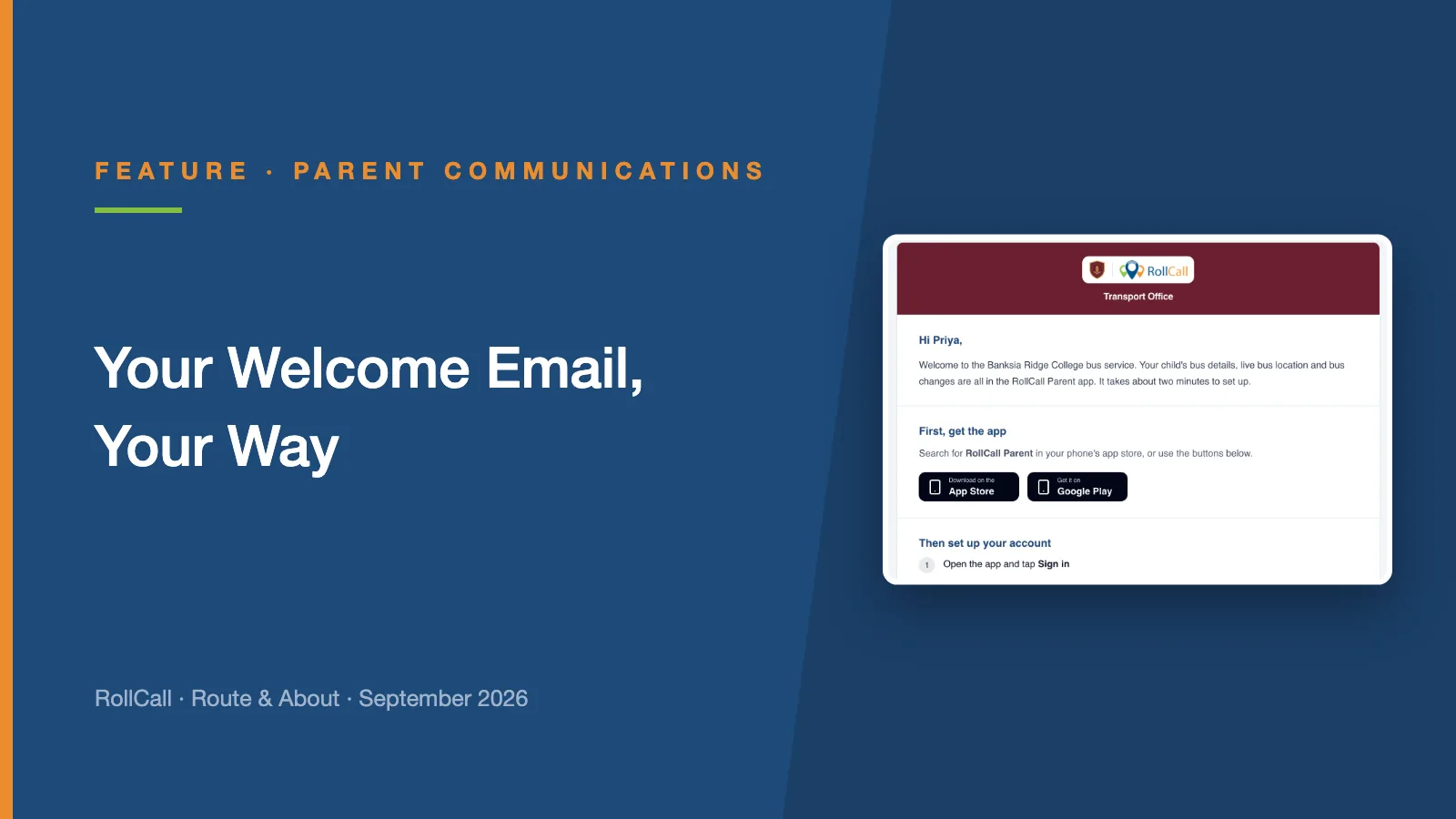
The welcome email is the first thing a new family gets from RollCall. Now your school runs it: your logo and colours, your wording, and a preview of exactly what families receive.
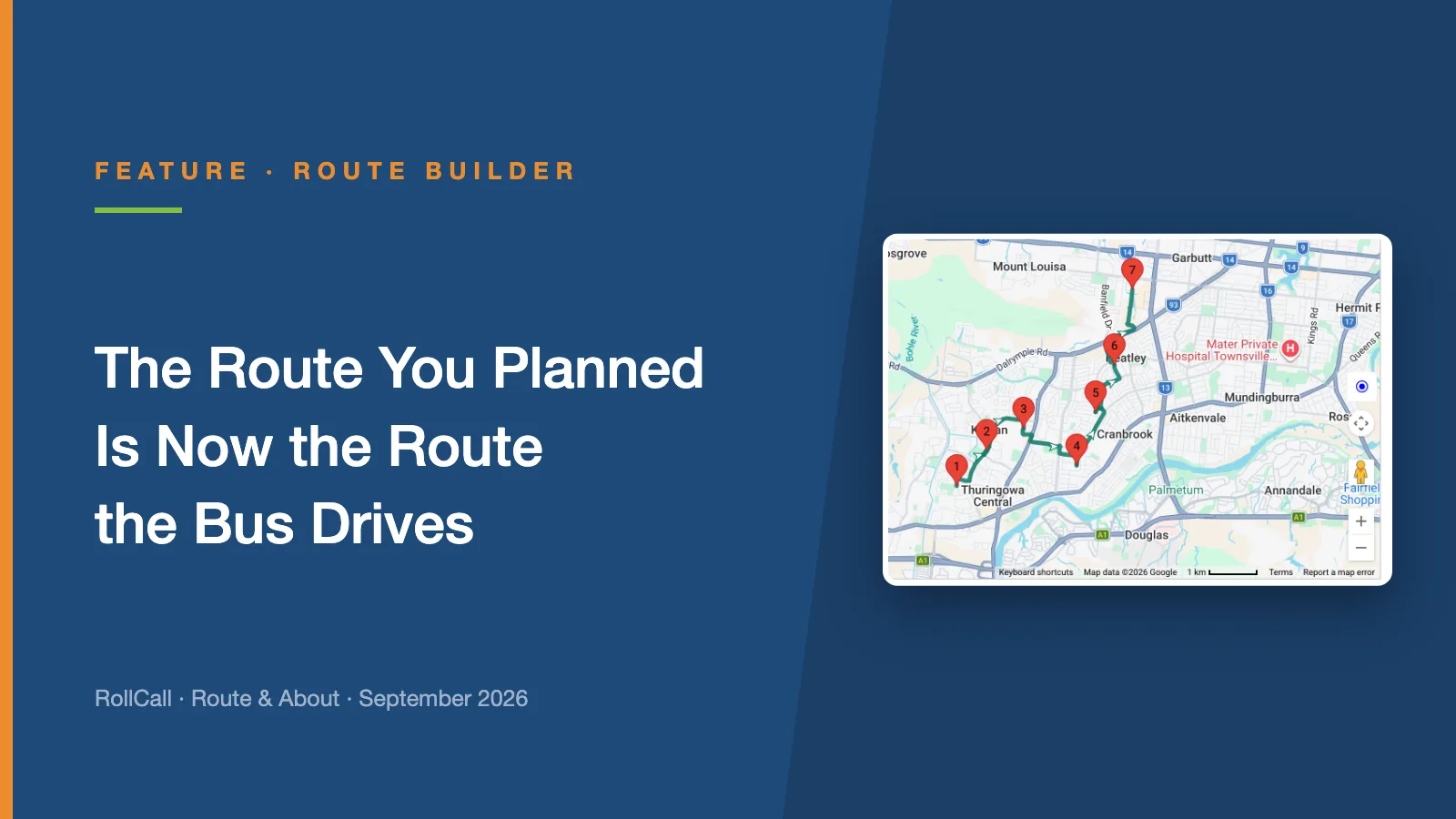
You set the exact road between every stop. The driver app follows it, turn by turn, whoever is behind the wheel.
Last month we said a rebuilt Route Builder was next. It is here, and the biggest change is one you will notice on the road rather than on the screen.
Until now, driver navigation worked the way the maps app on your phone works. You gave it the stops, and it decided how to get between them.
That is exactly what you want from a maps app. It is not always what you want from a school bus. If the driver took a wrong turn, navigation worked out a new route. If the driver preferred another way, it went along with it. Either way, the bus could end up on roads you had deliberately ruled out: the narrow street, the tight turn outside the shops, the road past the low bridge.
The route you planned and the route the bus drove could drift apart, and nobody saw the gap until something went wrong.
The route you set is the route the bus drives, whoever is behind the wheel.
Plan Navigation puts the road itself in your hands.
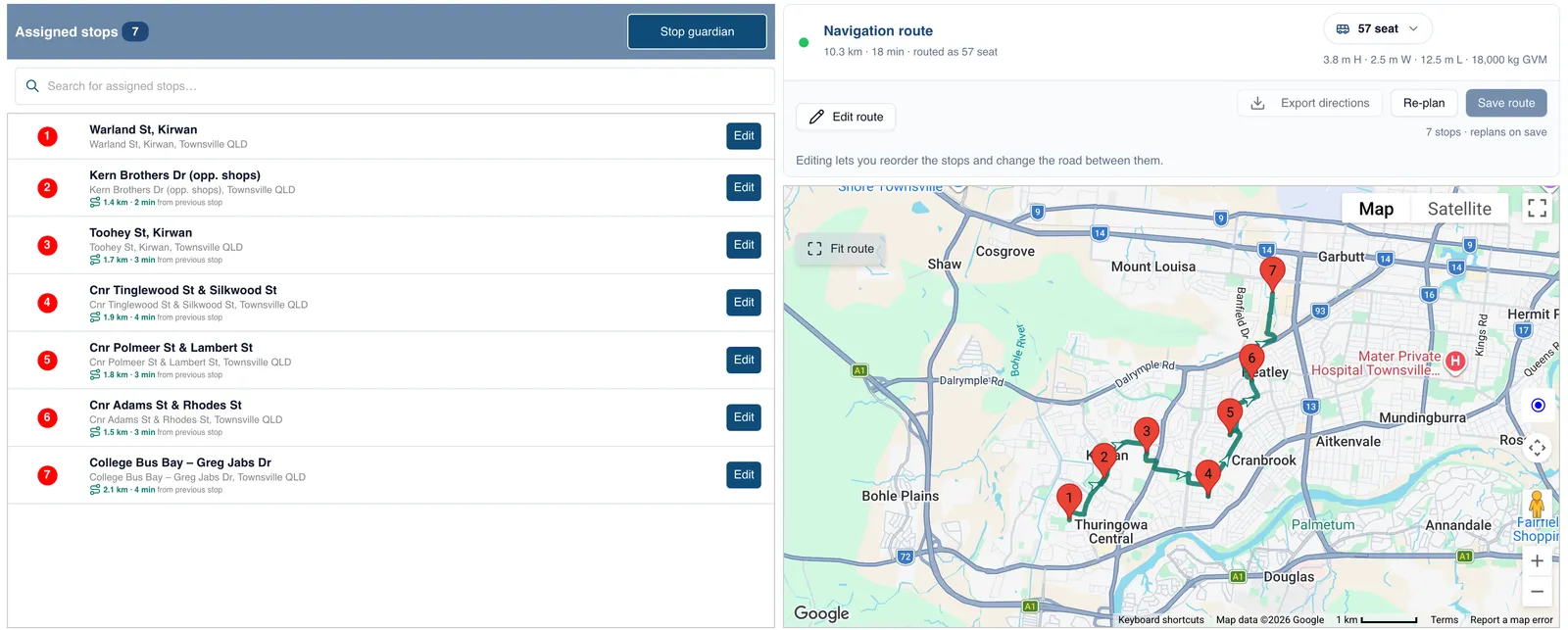
In Route Builder, RollCall plans a driving route through your stops, in order, and draws it on the map. The panel above the map shows the total distance and driving time, and each stop in the list shows how far it is from the one before.
Choose Edit route, then drag any part of the line onto a different road: the safer turn, the back gate, the street that avoids the low bridge. RollCall re-plans that stretch around the point you added.
The points you drag in are only there to shape the road. They never appear as stops in reports, Stop Times, student allocation or the route PDF, so your stop list stays exactly as it was.
A road that suits a car does not always suit a 12.5 metre coach. Every route is planned against a bus profile, so it keeps to roads the vehicle can use. There are four templates, for 15, 25, 43 and 57 seat buses, plus Custom, where you enter the height, width, length and gross vehicle mass of your own bus.
Save the route and RollCall keeps it as the route. The navigation version of the driver app then follows that exact road, turn by turn, with stop names instead of street addresses. It does not work out a new route or choose its own roads.
Navigation is switched on per school, and drivers use a separate navigation version of the driver app. Turn-by-turn guidance is rolling out now to schools using Navigation.
If you would like it for your routes, email support@rollcall.com.au and we will set you up.
The welcome email is the first thing a new family gets from RollCall. Now your school runs it: your logo and colours, your wording, and a preview of exactly what families receive.
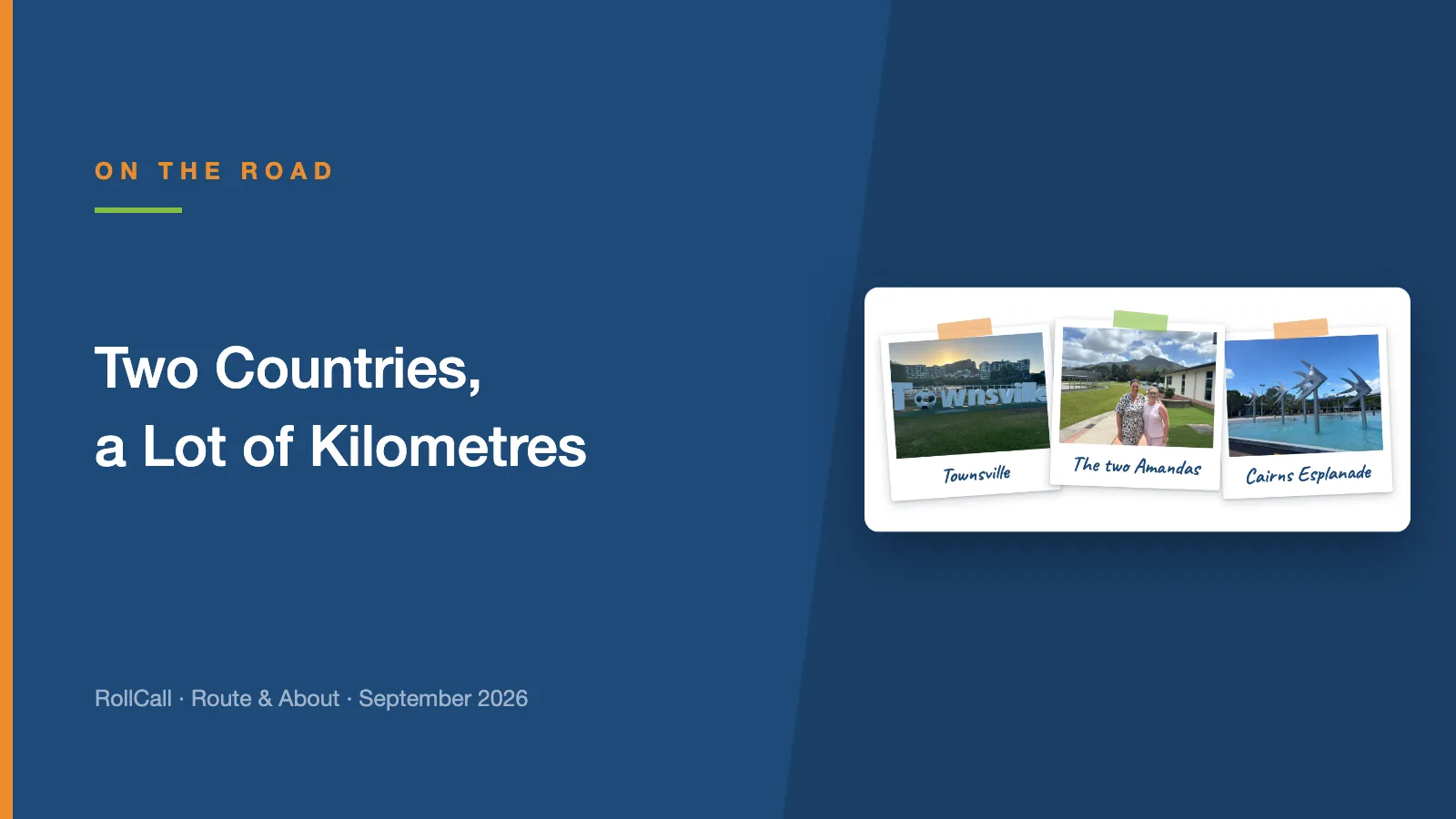
In the same week in September, Amanda visited our schools in Townsville and Cairns, and Dean took the RollCall stand to the SAHISA 2026 Conference in Durban.
Rollover has come a long way since you last tried it. If it went badly for you once, we understand why you have not been back - and here is why this is the year to look again.